Contents
We’re excited to introduce a major upgrade inside RepSketch, our most advanced AI fashion sketch generation model to date. This new update lets you turn ideas, fabric choices, silhouettes, and even rough concepts into clean, production-friendly fashion sketches in seconds.
This launch is designed to help both designers and product teams move from concepts → sketches → developments faster than ever, without losing the creativity and intuition behind the design process.
What is This New Repasketch AI Model
To make AI sketching truly useful for fashion designers, we’ve integrated a next-generation model capable of understanding fabric descriptions, construction details, silhouette cues, and styling instructions with far greater accuracy.
Here's what it can do for your design workflow:
- Generate clean, production-ready sketches from natural language prompts
- Understand design-specific vocabulary (pleats, darts, princess seams, ribbed cuffs, etc.)
- Maintain consistent silhouette shapes and proportions
- Apply fabric, style, and detail variations instantly
- Deliver sketches in a style compatible with moodboards, spec sheets, and tech packs
In short: you describe it, and it sketches it. And you can do all of this directly inside RepSketch.
Community Showcase: How Designers Are Already Using It
We quietly rolled this out to a group of users, and we’ve been blown away by the creativity. They're already finding awesome ways to apply this tech in their design workflows!
Here are some of the most exciting real-world use cases so far:
1. Instant Concept Ideation (From Flat Sketch to Photorealistic Visual)
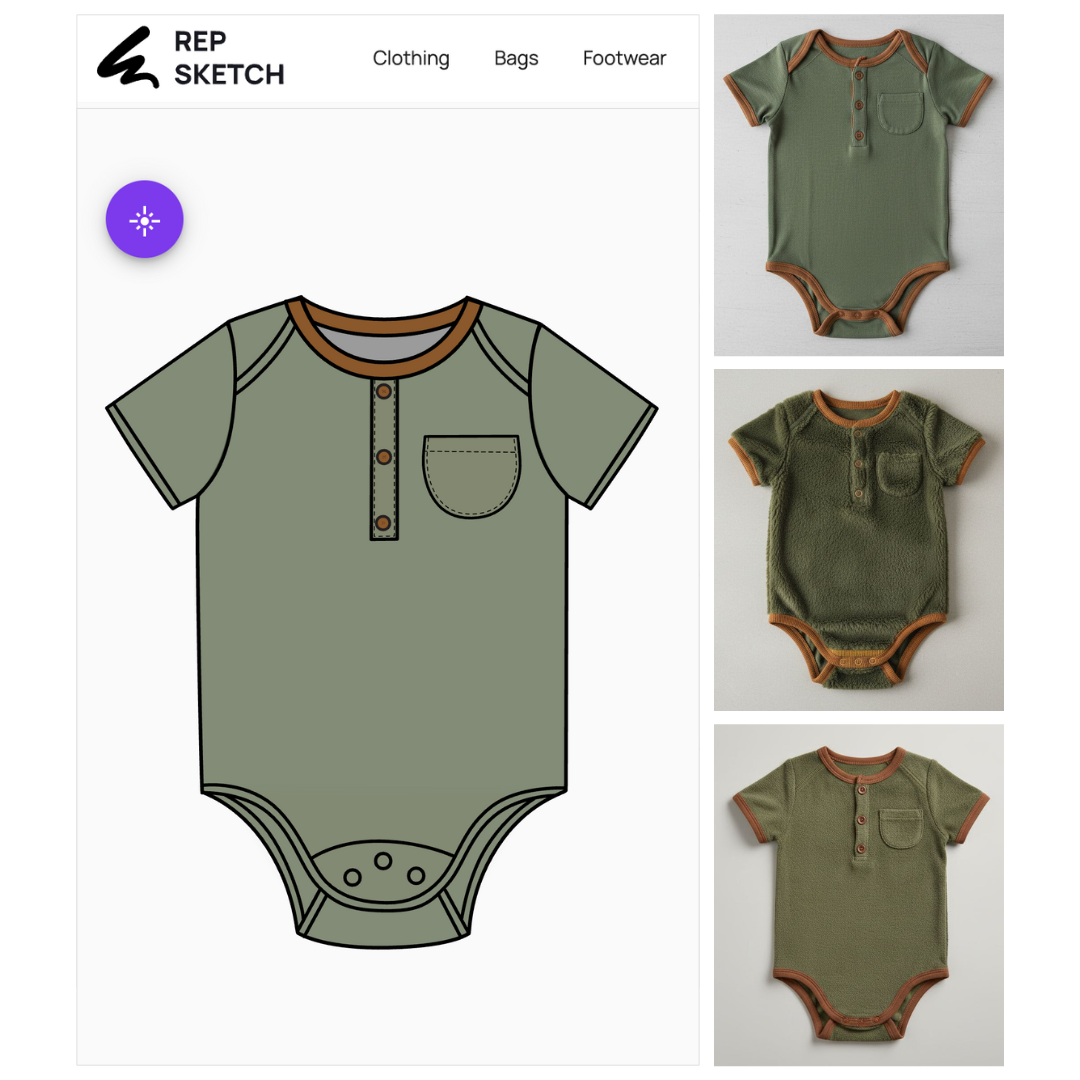
One of the most common ways designers are using the new model is to instantly visualize how their flat sketches would look as realistic 3D-style images.
You can describe silhouettes, trims, fabrics, materials, or seasonal ideas — and RepSketch generates a clean, consistent visual that helps you compare options quickly.
Some examples our early users created include:
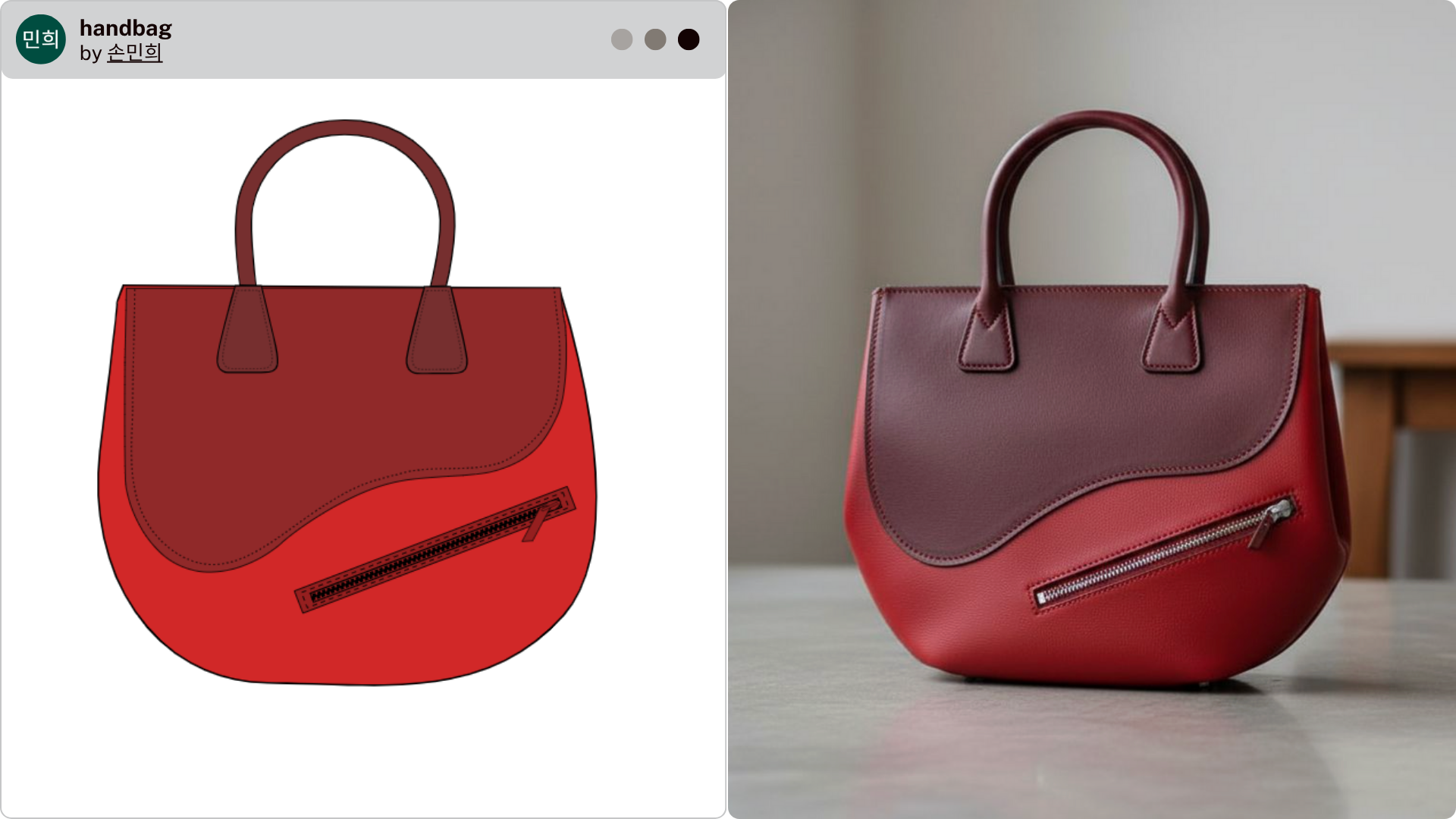
Here, the designer simply wanted to see how the two-tone silhouette, trims, and zipper line from the sketch would translate into a real product image. A prompt as simple as:
“Photorealistic image of this handbag, keeping the same colors, panel shapes, zipper placement, and trims as the flat sketch.”
And the model instantly generated a lifelike version that looks like it could be sitting on a product-display table.
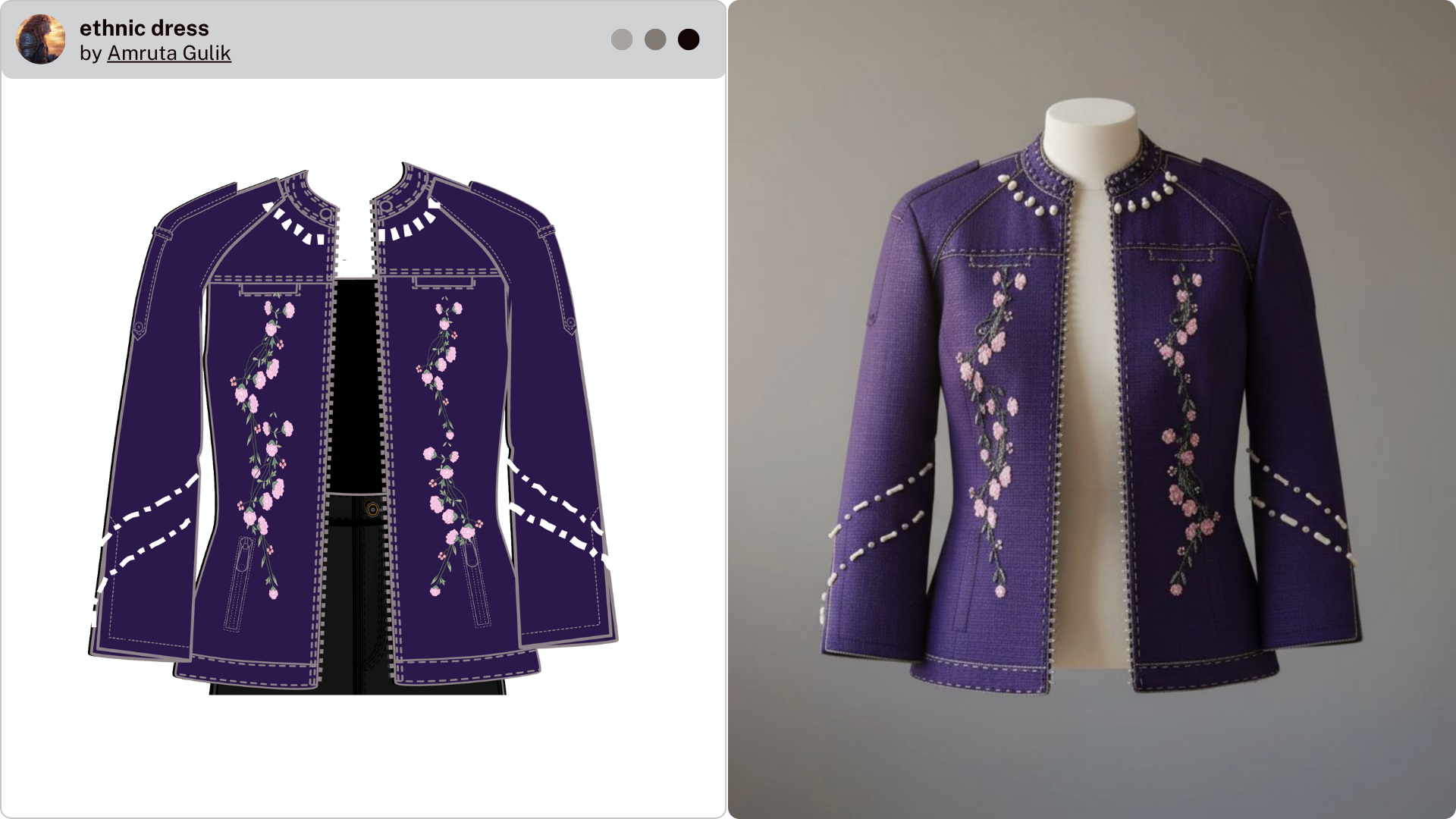
The same idea worked beautifully for the embroidered jacket. The user didn’t change anything — just wanted to see it come alive. Their prompt was:
“Photorealistic image of this embroidered jacket, keeping the same purple color, floral embroidery placement, neckline details, and stitching shown in the flat sketch.”
The result captured the beadwork, thread textures, and structure almost stitch-for-stitch.
Even a seasonal graphic tee worked perfectly. A back-view sketch with a Christmas motif became a clean photoshoot-style image using:
“Photorealistic back-view image of this T-shirt, matching the same yellow color, Rudolph reindeer graphic, and placement shown in the flat sketch.”
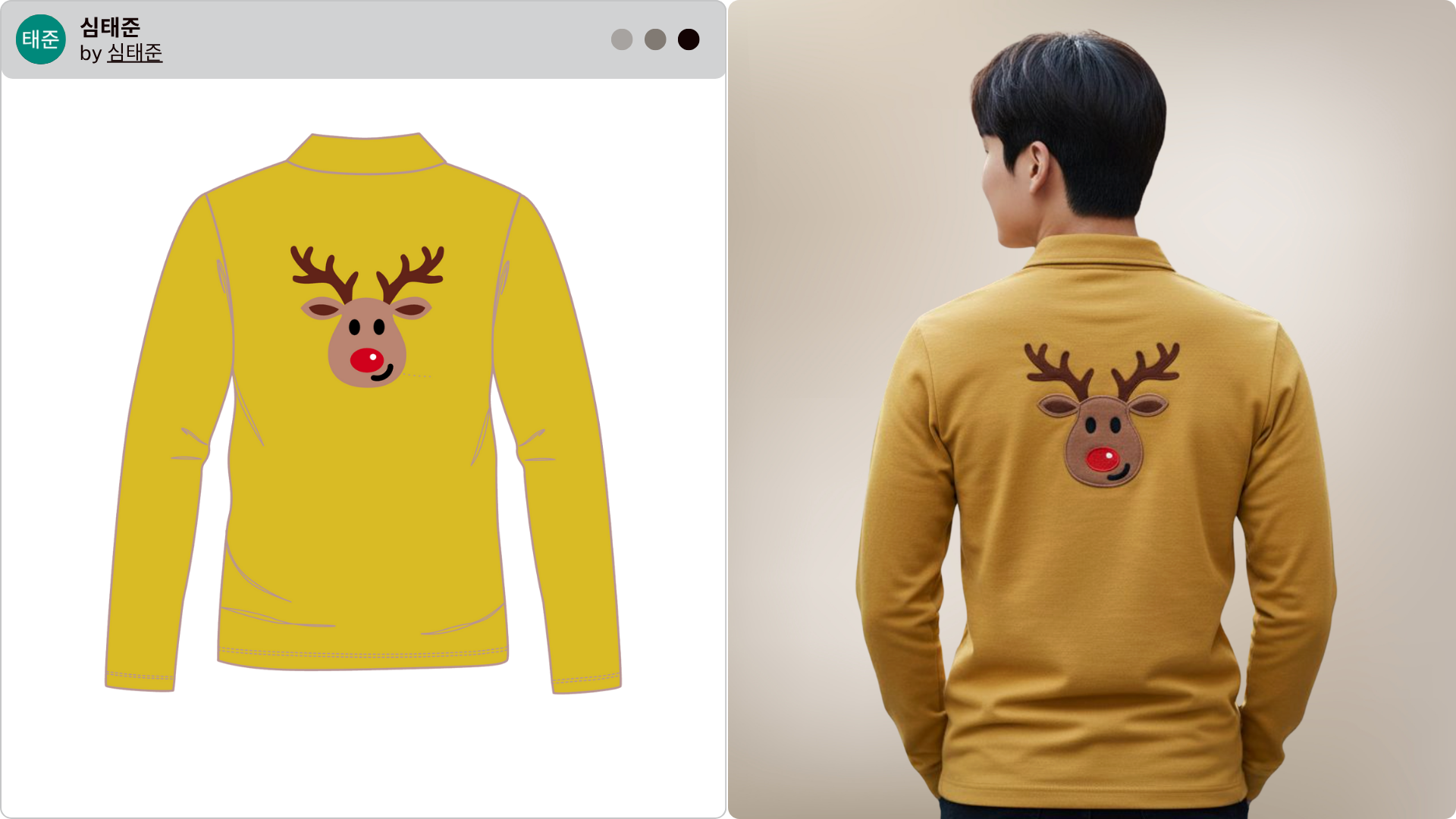
And with the backpack example, the model handled both front and back views effortlessly:
“Photorealistic front and back images of this backpack, matching the same orange body color, beige straps, zipper placement, and panel details shown in the flat sketch.”
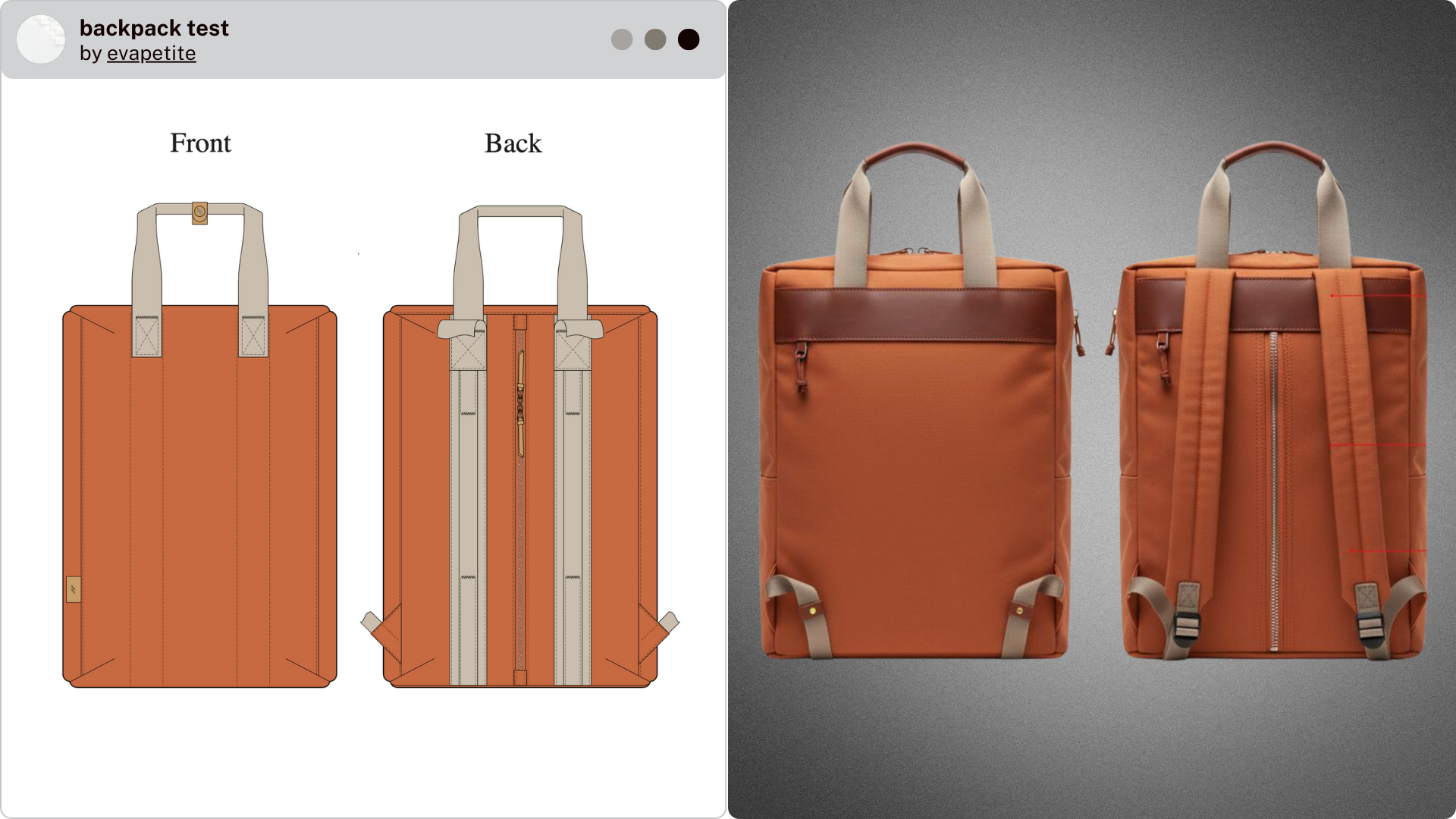
This makes early concept validation much easier, especially when trying to understand proportion, finish, and material feel before moving into sampling.
2. Quick Client Mockups (Real-Time Visuals During Collaboration)
Designers also love using the tool live — whether in a client meeting, brainstorming session, or internal review. Instead of trying to explain an idea verbally or scribble rough sketches, you can generate polished mockups on the spot.
Some real user scenarios include:
A woman’s top where the designer wanted to show how a ruffled blouse would look both on a body form and on a real model. Without changing the sketch, they used:
“Photorealistic mockups of this top — one on a body form and one on a model — matching the same light pink fabric, ruffle neckline, sleeve shape, and cuff details shown in the flat sketch.”
Within seconds, the team had two highly polished mockups that made decision-making much easier.
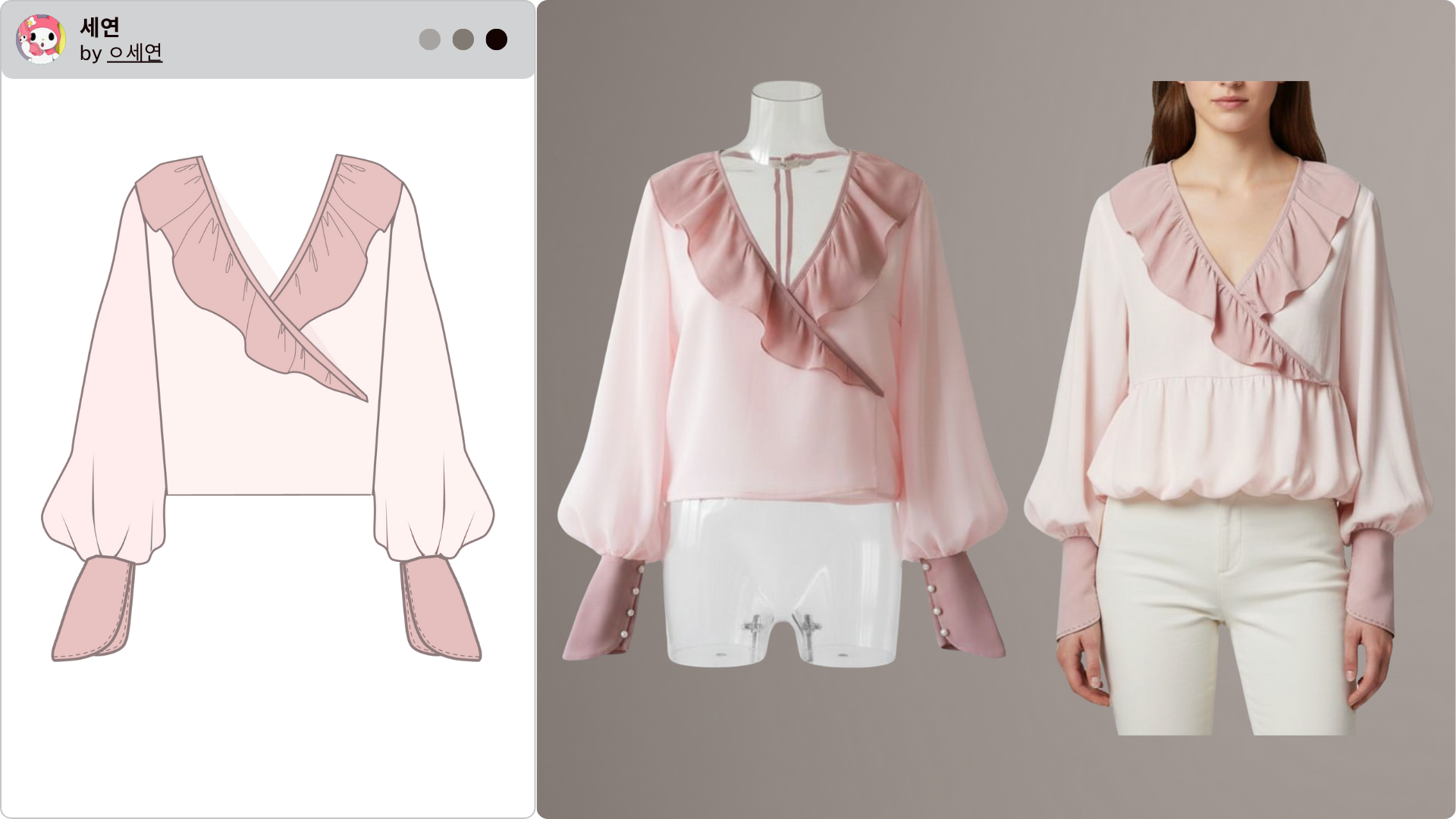
Another designer was exploring neckline variations. They created a frilled version simply by prompting:
“Photorealistic mockup of this top with a frill neckline applied exactly as shown in the flat sketch, keeping the same green color, neckline shape, and sleeve color blocking.”
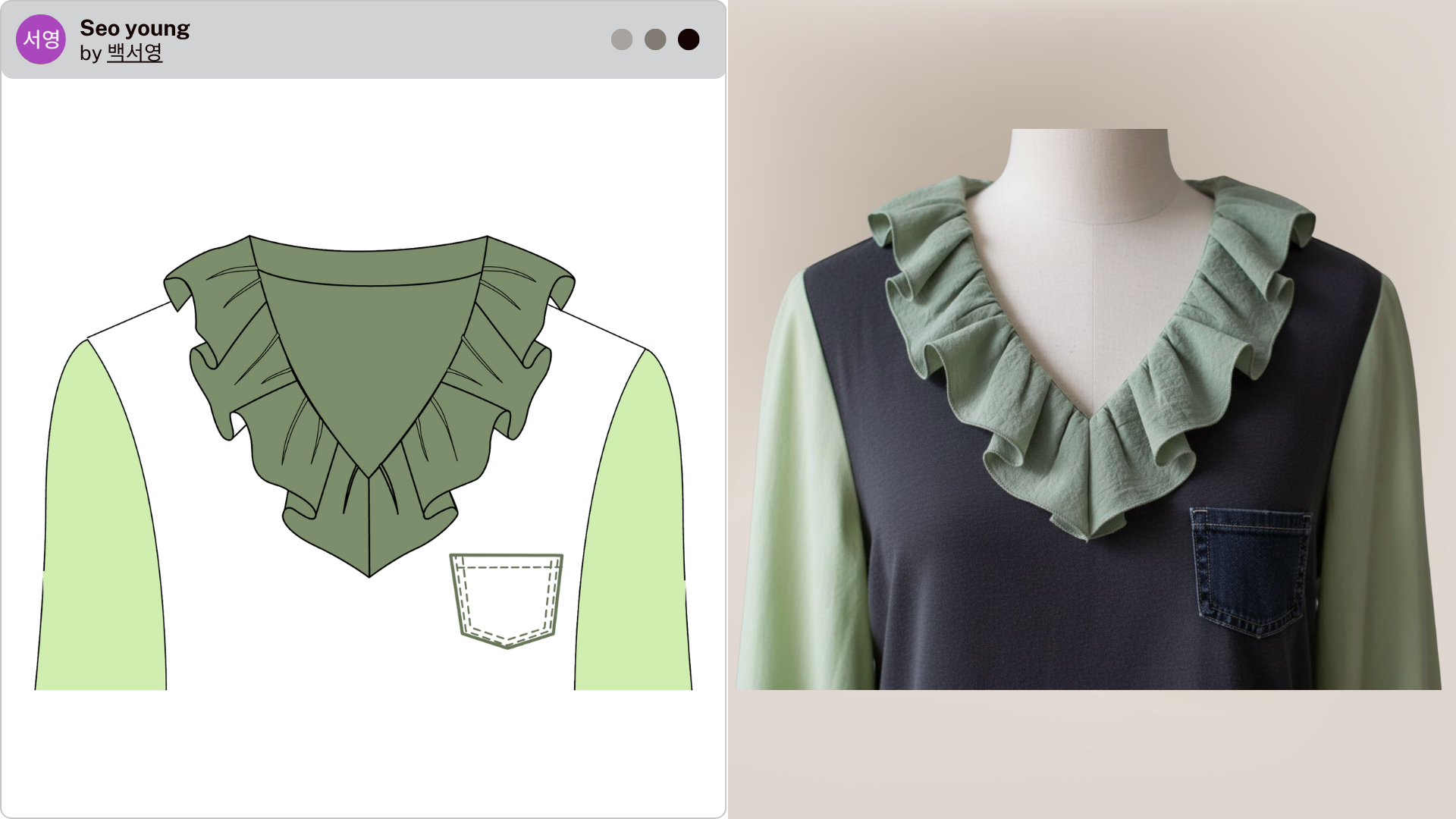
And when someone wanted to quickly understand how a garment might look as a flatlay — the kind you’d use for e-commerce — they just wrote:
“Photorealistic flatlay of this top, matching the same light blue color, faux-fur shoulder details, pom-pom drawcords, ribbed neckline, and sleeve shape shown in the flat sketch.”
The result looked exactly like a styled product photo.
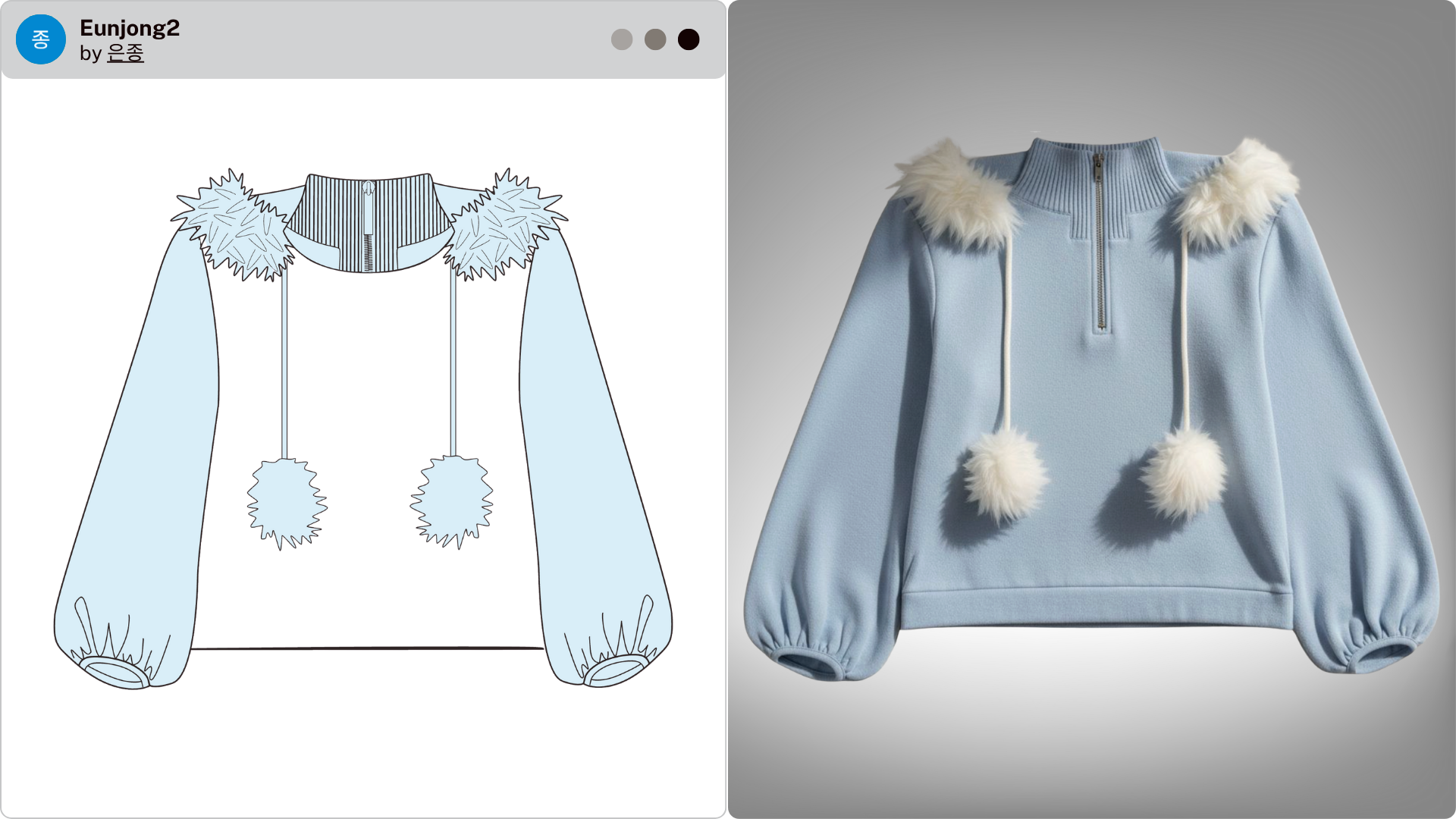
This kind of on-the-fly visualization elevates conversations and helps teams make faster, more confident decisions.
3. Turning Existing Sketches Into New Variations
Another powerful use case is generating variations from a single base sketch. Designers are using this to explore fabrics, fits, lengths, and colorways without redrawing the entire style.
Examples include:
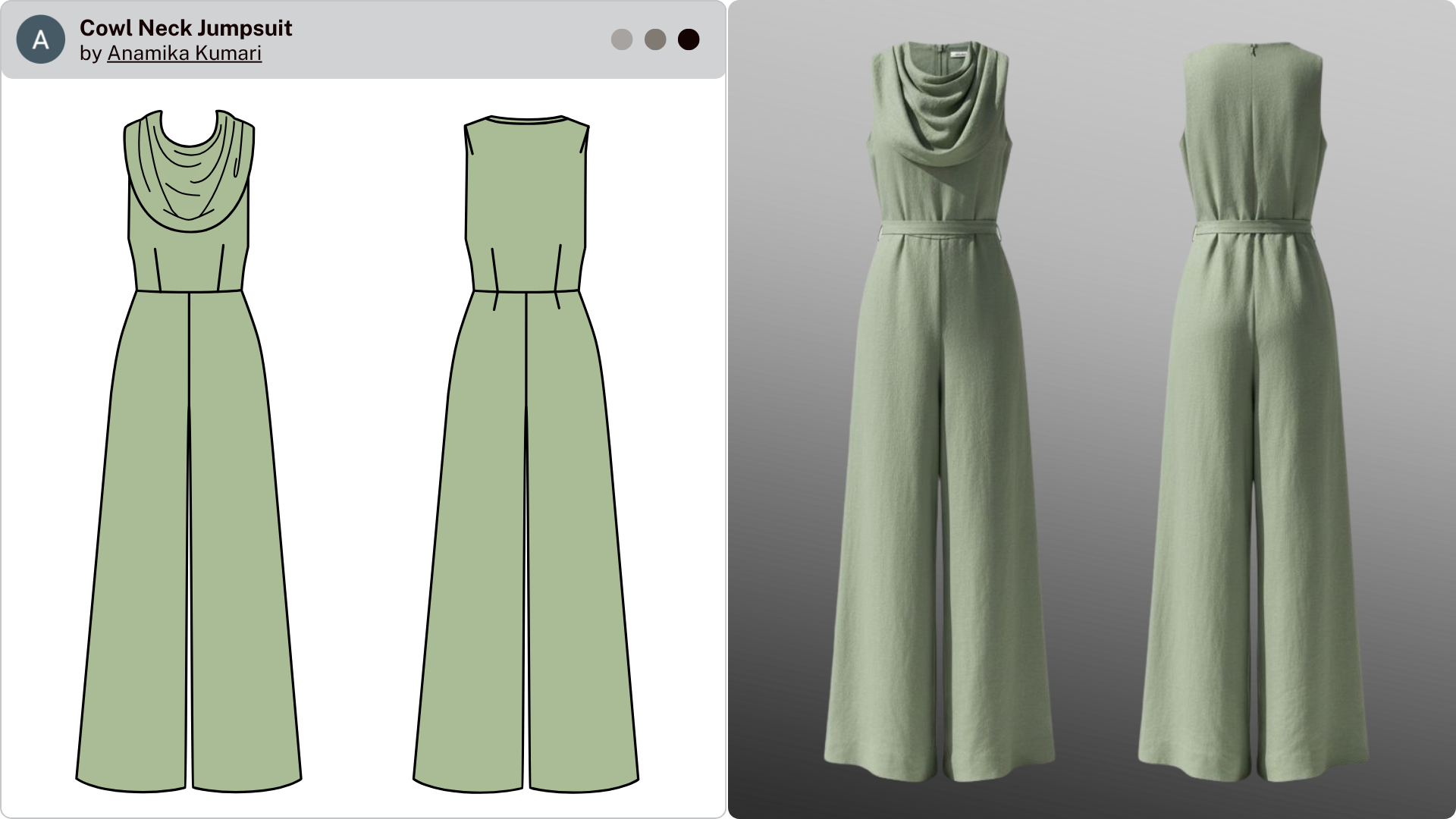
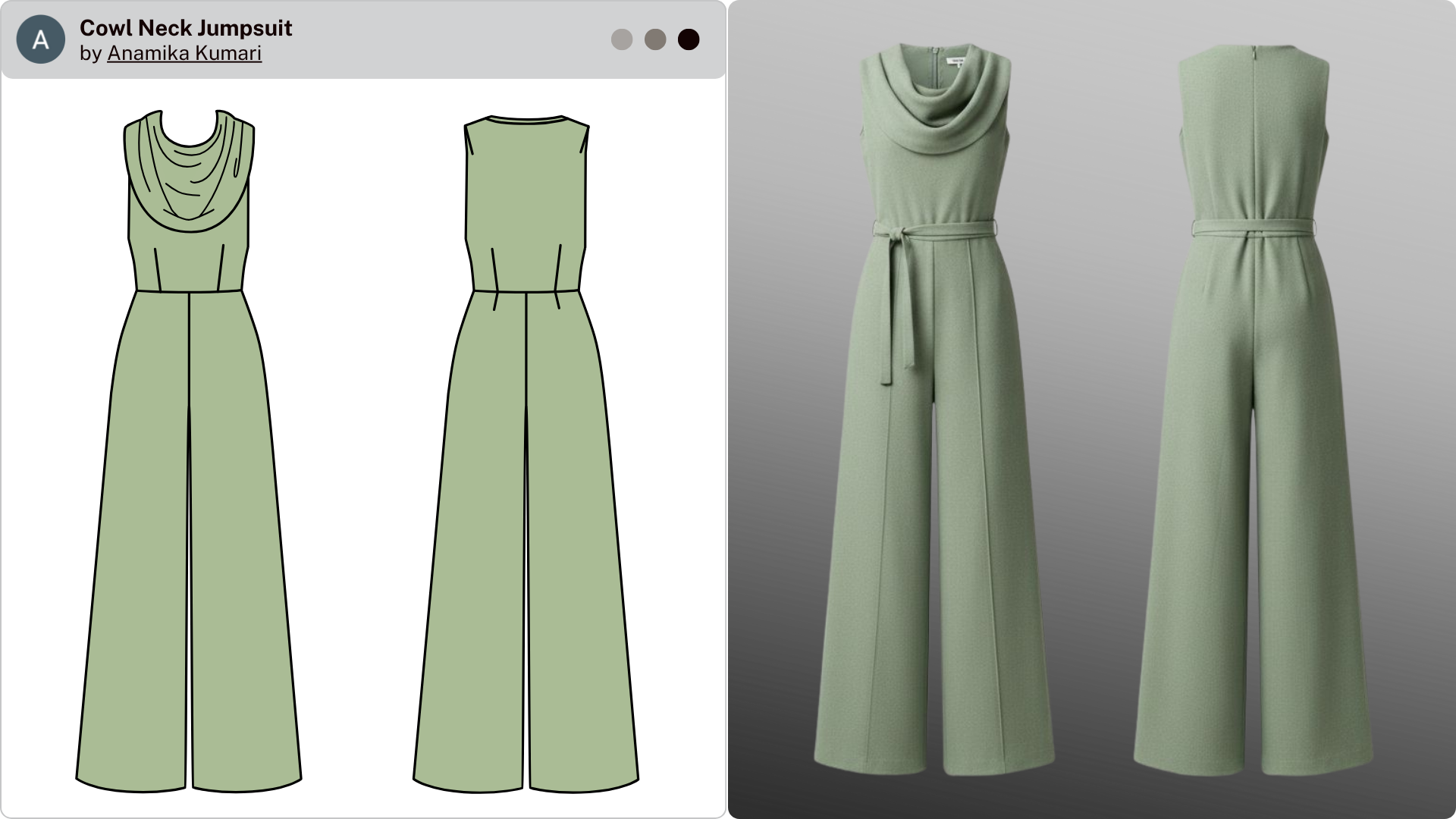
A cowl-neck jumpsuit sketch was turned into two realistic variations:
One in linen:
“Photorealistic front and back images of this cowl-neck jumpsuit in linen fabric, keeping the same silhouette, proportions, and seam details as the flat sketch.”
And the same one in wool:
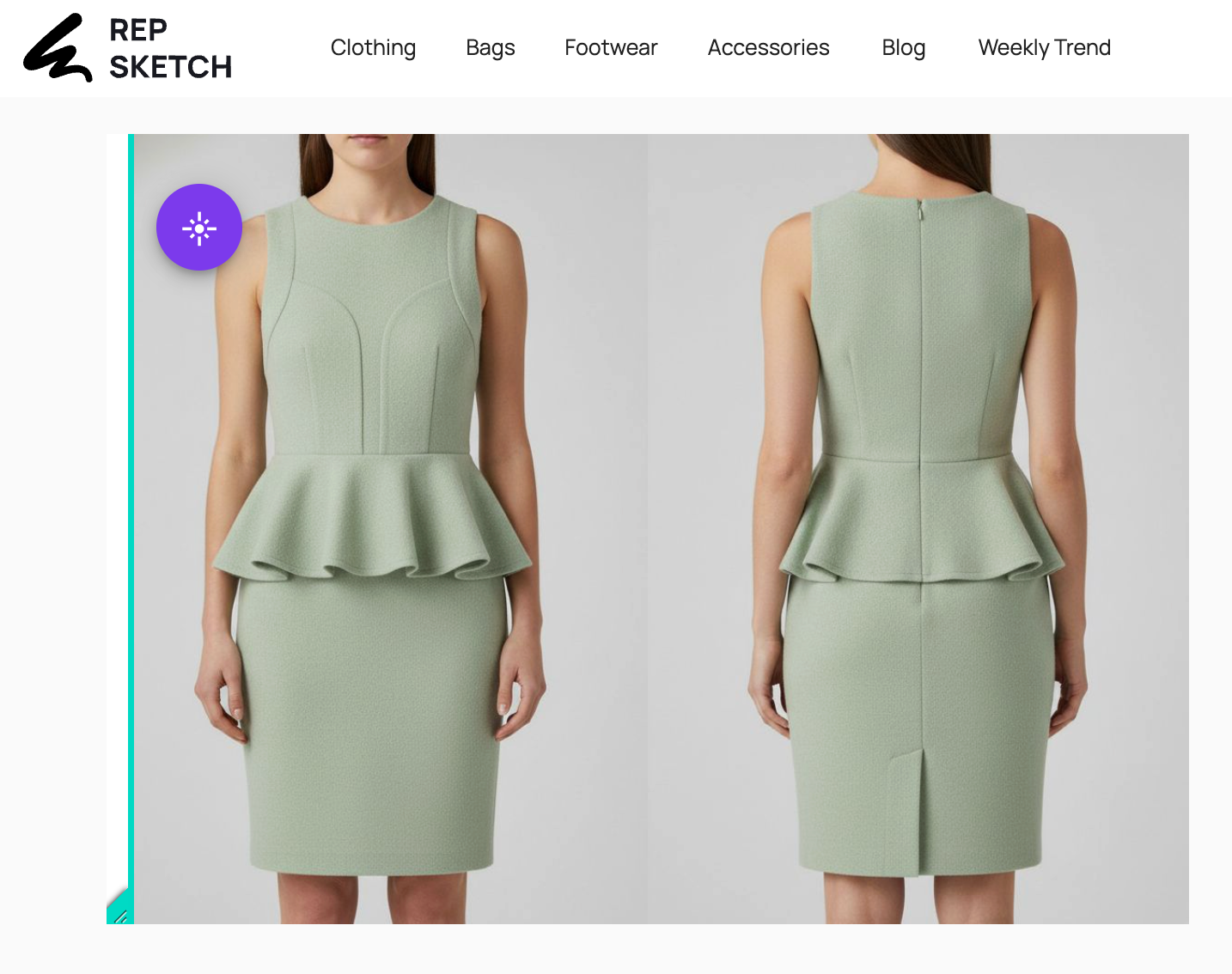
“Photorealistic front and back images of this cowl-neck jumpsuit in wool fabric, keeping the same shape, drape, and design details as the flat sketch.”
A completely different look, generated from the same base file — with zero rework.
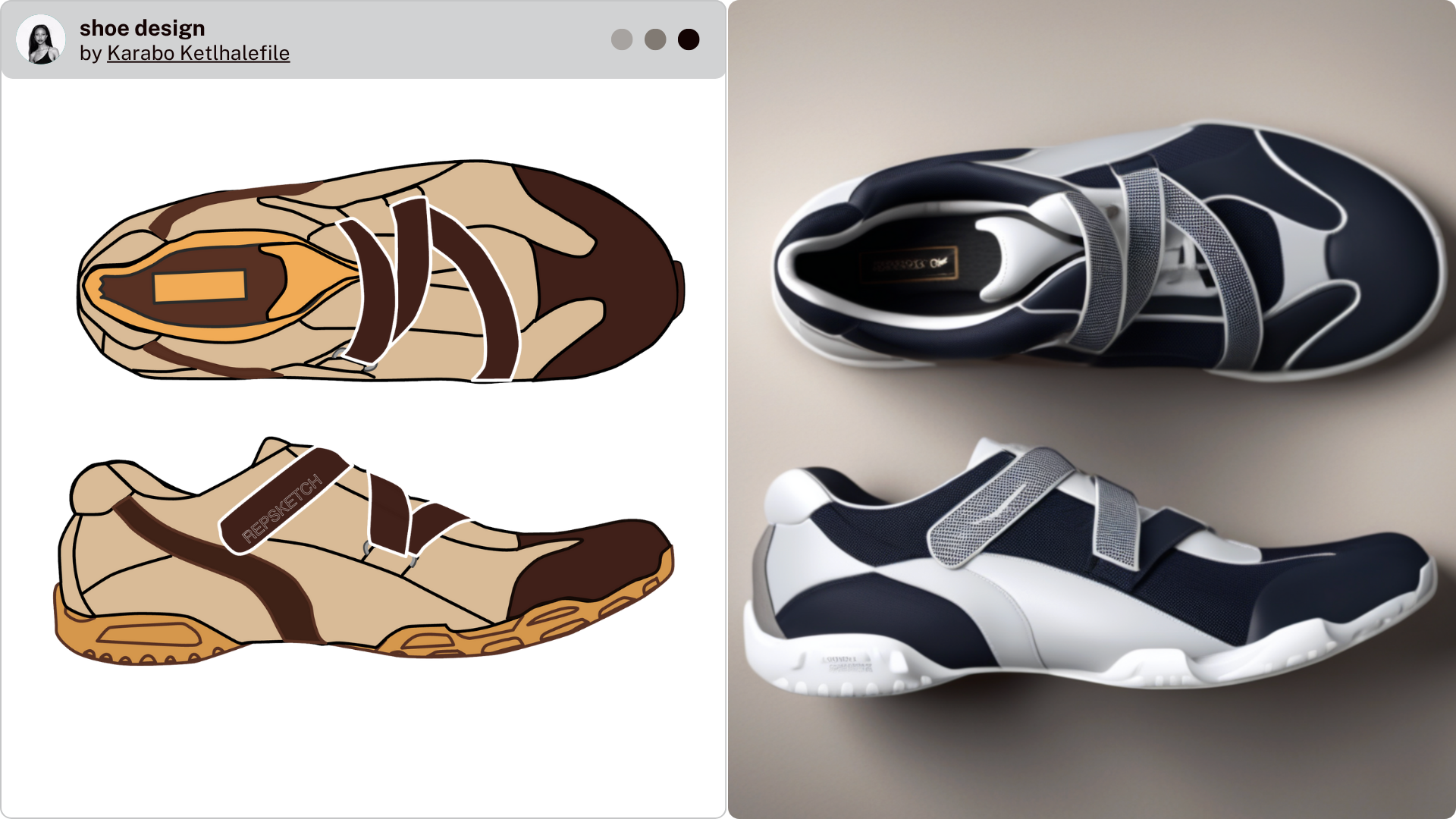
The same idea worked beautifully for footwear. One user uploaded a sneaker design but wanted to visualise it in a new colorway. With a simple prompt like:
“Photorealistic top and side-view images of this shoe design, keeping the same panel shapes, strap placement, and silhouette, but render it in a different colorway.”
The model reimagined the shoe in a fresh palette, while preserving every structural detail from the original sketch.
This flexibility allows designers to experiment with color, finish, and texture in seconds — long before committing to sampling or material sourcing.
4. Visualizing Full Looks and Collections
Designers are also using the tool to understand how complete looks — not just individual sketches — translate into realistic images. This is especially helpful during early collection planning, where seeing everything together brings clarity to direction, cohesion, and styling.
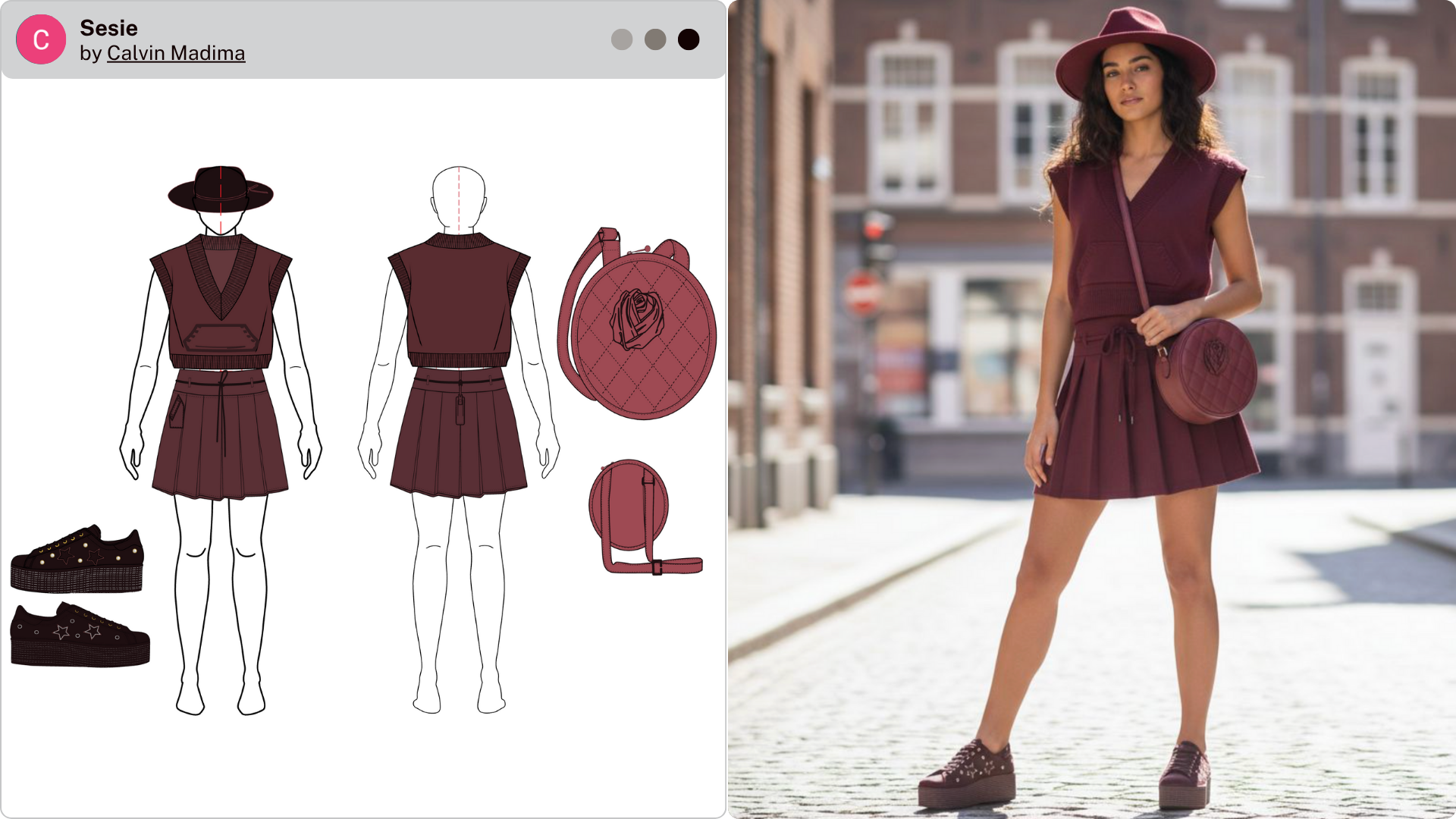
One example was a complete three-piece look: hat, top, pleated skirt, shoes, and bag. The designer wanted to see how it all came together in real fabric. Their prompt:
“Photorealistic image of this complete outfit on a model — including the sleeveless knit top, pleated skirt, round quilted bag, matching hat, and platform shoes — keeping all colors and design details exactly as shown in the flat sketches.”
The result looked like a campaign photo.
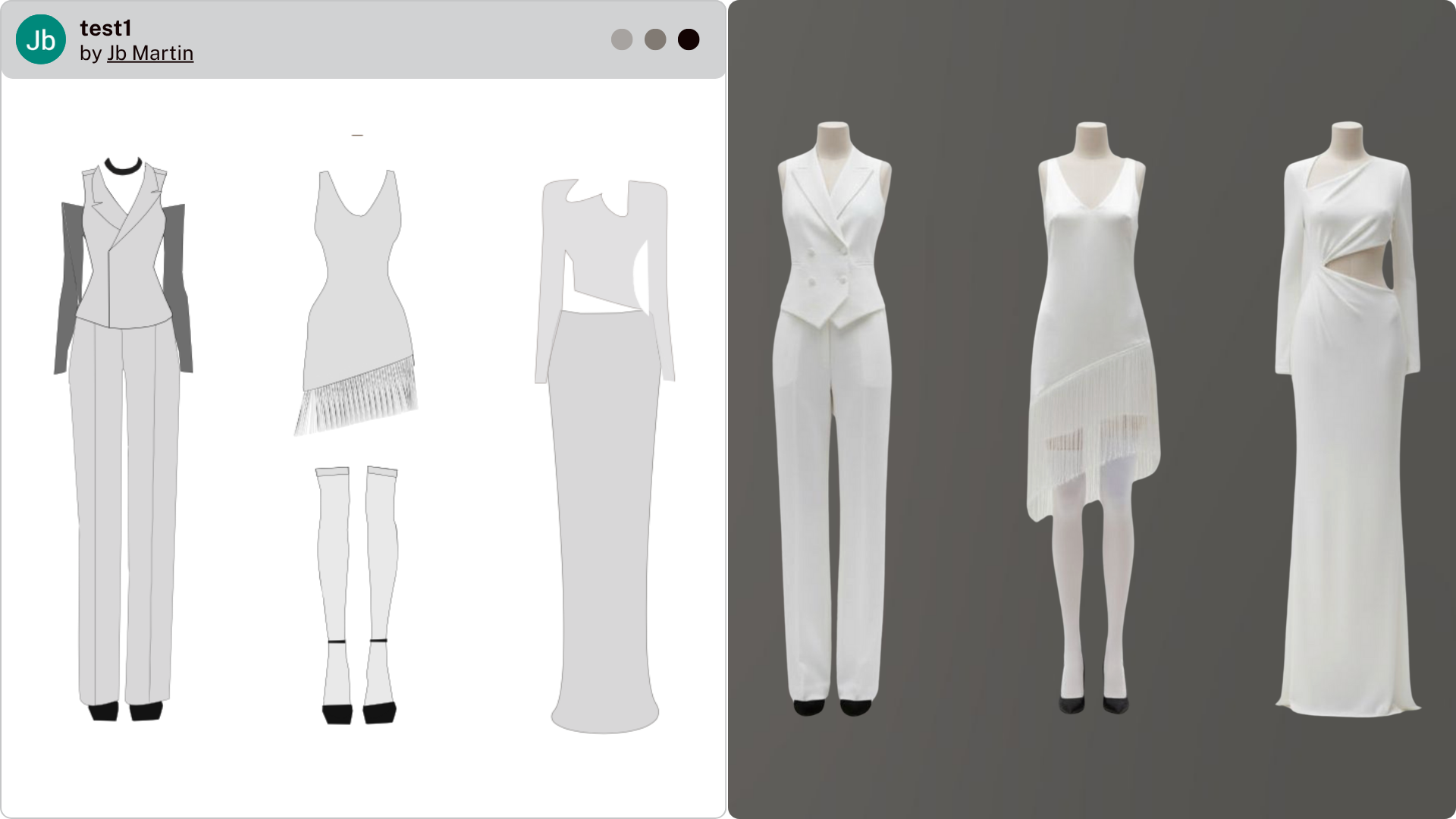
Another designer uploaded three sketches from a white collection — a tailored suit, a fringe dress, and a cutout gown — and got back a stunning set of cohesive visuals using:
“Photorealistic images of these three outfits from the collection, rendered in white fabric with accurate drape, silhouette, and design details exactly as shown in the flat sketches.”
Seeing the full collection together in realistic fabric helped them refine proportions and styling before starting sample development.
This gives designers a more holistic perspective early in the process, helping them validate proportion, fit, color balance, and overall aesthetic long before sampling begins.
How to Use This New AI Model (Step-by-Step)
Using the AI sketch feature in RepSketch is simple:
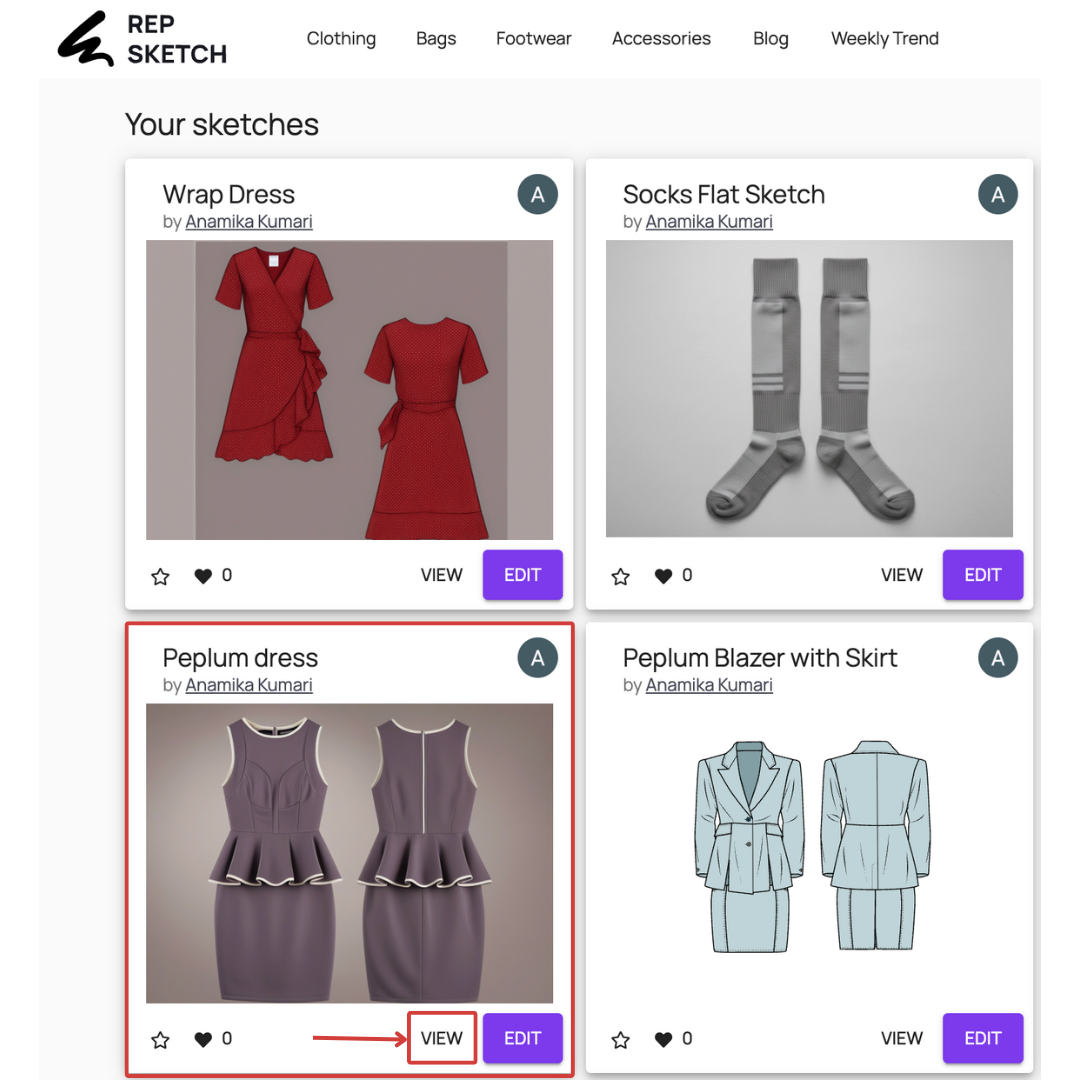
Step 1: Open your RepSketch workspace
Navigate to your sketches and click on "VIEW".
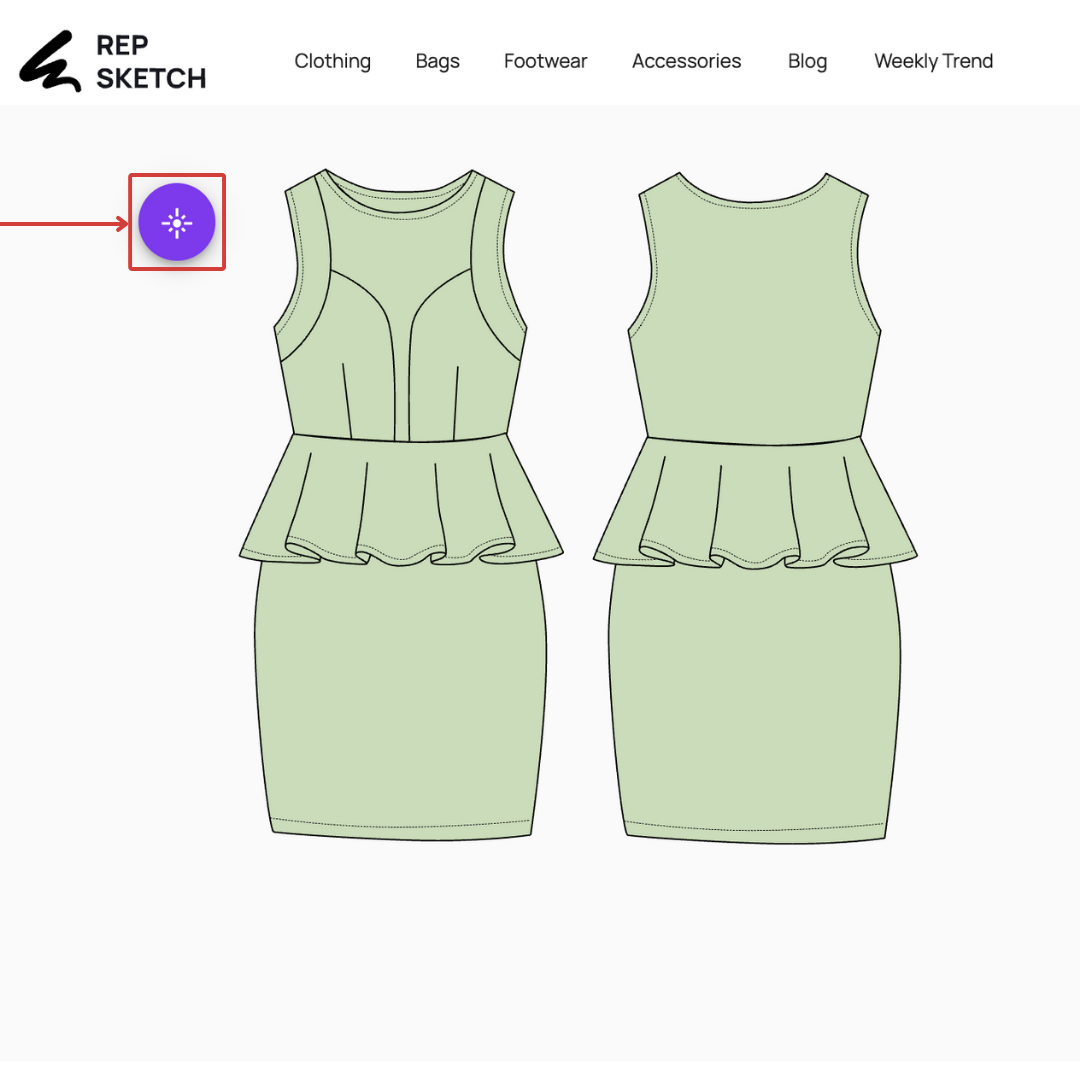
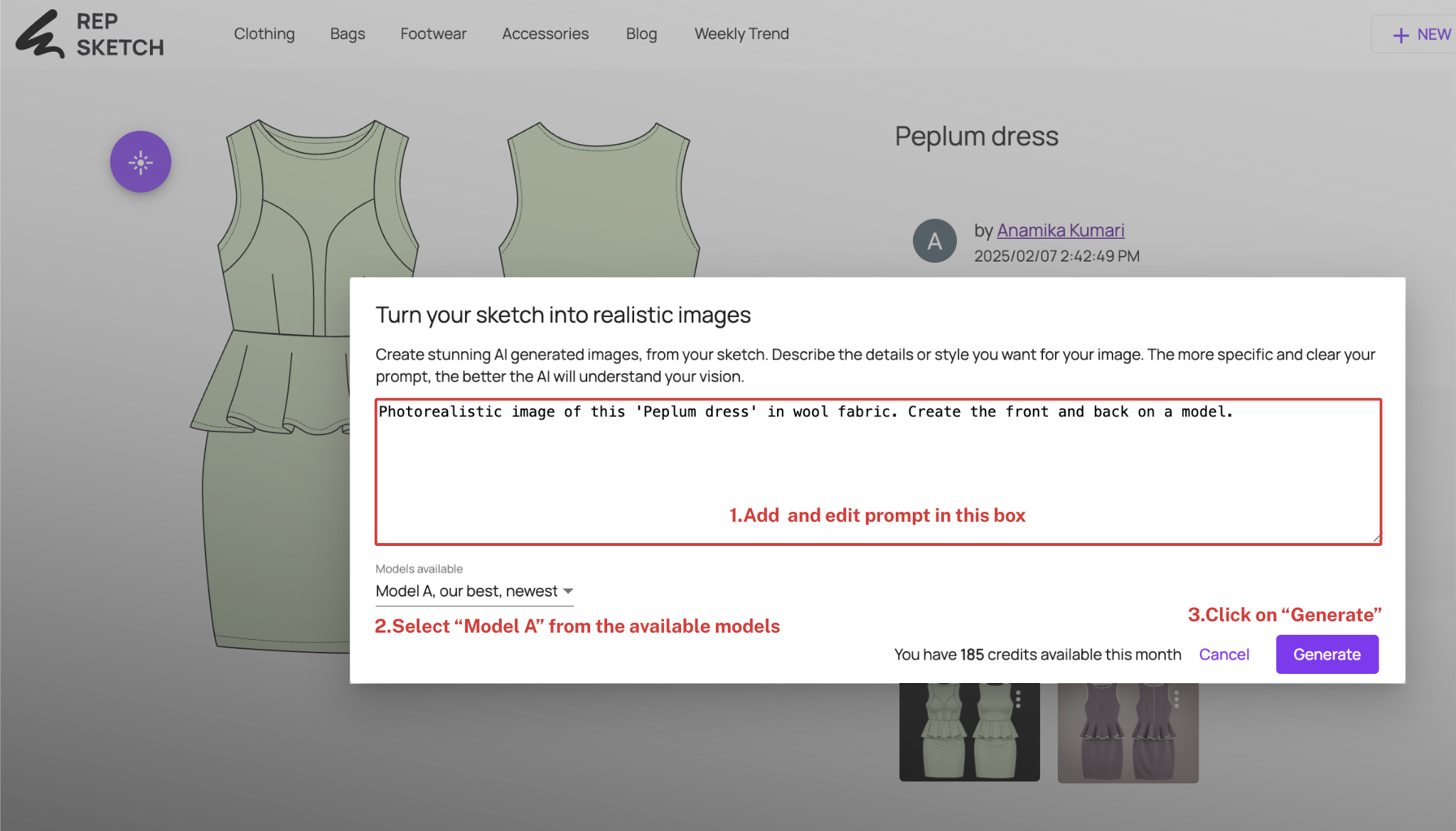
Step 2: Click on the AI Genertor tool icon
Click on AI Generator tool icon on the top left of your sketch.
Step 3: Select Model A from the AI options
You will see a window to edit prompt. My prompt is, “Photorealistic image of this "Peplum dress" in wool fabric. Create the front and back on a model”. Now, select the sketch generation model - Model A, click on "generate" and sit back and relax!
Step 4: Save and export
Once satisfied, you can save your sketch as part of your tech pack or export it for presentations and client feedback.
This is designed for minimal learning curve — so you spend less time figuring it out and more time creating.
 Kumari Anamika
A Step Toward the Future of Digital Fashion Design
At RepSketch, our mission is to empower designers through smart, intuitive tools, not to replace creativity, but to amplify it.
Designers are already using the platform to combine:
- Flat sketches
- Trim and construction libraries
- Spec details
- Packaging or labeling elements
- AI-generated visuals
- Moodboards and concept presentations
All in one workspace.
No switching tools. No scattered references.
Just a smooth flow from inspiration → visualization → development.
We can’t wait to see how you’ll use this feature to bring your next collection to life.
Try it today — open RepSketch, select Model A, and start creating your imagination.